Startechcom S354SMTB2R Manual do Utilizador
Consulte online ou descarregue Manual do Utilizador para Acessórios para Computador Startechcom S354SMTB2R. StarTech.com S354SMTB2R User Manual [en] [es] [de] [it] Manual do Utilizador
- Página / 26
- Índice
- MARCADORES

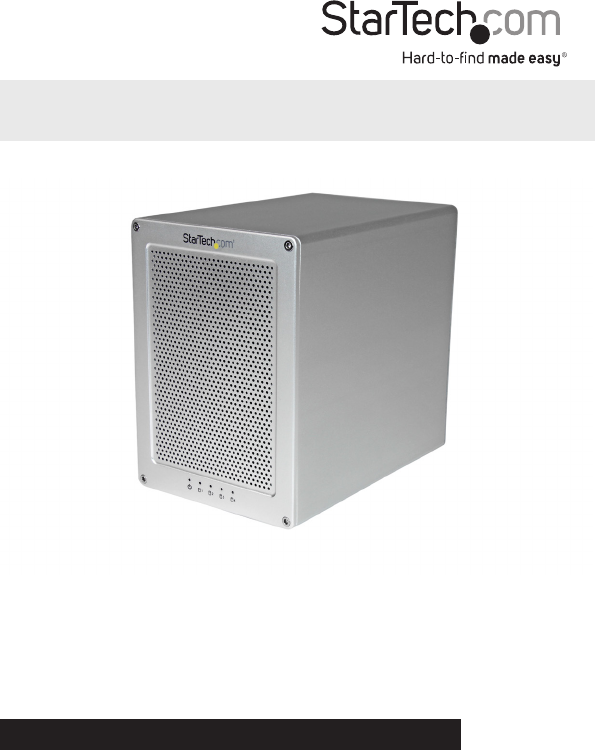
Resumo do Conteúdo
Manual Revision: 09/19/2014For the most up-to-date information, please visit: www.startech.comDE: Bedienungsanleitung - de.startech.comFR: Guide de l&
Instruction Manual7Step 3. Your Thunderbolt Enclosure is now ready to use!The hard drives installed in your Thunderbolt Enclosure will now appear in i
Instruction Manual8Step 4 (Optional). Install the RAID management software (Marvell Storage Utility or MSU) on your computer to congure Your Thunderb
Instruction Manual9Software InstallationMac OSX1. Download the RAID Management Tool (MSU) from: StarTech.com/Support2. Open the “osx” folder from t
Instruction Manual104. Once installation is complete, click the Finish button. The Marvell Storage Utility has now been installed.Windows 8/
Instruction Manual113. The windows installation wizard will walk you through the remaining installation steps. To complete the installation, click
Instruction Manual12Software OperationThe Marvell Storage Utility (MSU) is a browser-based management utility that can create and manage RAID and Hype
Instruction Manual13 b) Mac OSX users require their User name and password to login. Note: In Mac OSX there are two user names: a friendly usernam
Instruction Manual145. Your physically installed hard drives will be represented on the Create New VD Window. Select each drive you would like inc
Instruction Manual15Note: a number of advanced customizable options can also be changed such as Name, Initialize setting, Cache Modes, RAID Set Size,
Instruction Manual163. The Create HyperDuo Screen is now displayed. Using the Mode drop down menu, select Safe or Capacity depending on your desir
Instruction ManualFCC Compliance StatementThis equipment has been tested and found to comply with the limits for a Class B digital device, pursuant to
Instruction Manual17Managing Your ArrayView Properties of your RAID/HyperDuo Array1. Launch the MSU software using the icon on your desktop, and logi
Instruction Manual18Delete Your ArrayWARNING!Deleting your RAID array permanently erases any data on your virtual disk. However, you can choose to kee
Instruction Manual193. Navigate through the folders and place a check next to the folders you would like to add. Note: You can navigate into each f
Instruction Manual204. Click Submit to save your changes.5. An alert window will be displayed, click OK to begin the optimization process.View Prope
Instruction Manual21Note: Your physical disk properties cannot be edited.Erase Foreign RAID Conguration WARNING!When erasing previously congured RAI
Instruction Manual22Technical SupportStarTech.com’s lifetime technical support is an integral part of our commitment to provide industry-leading solut
Hard-to-nd made easy. At StarTech.com, that isn’t a slogan. It’s a promise.StarTech.com is your one-stop source for every connectivity part you need.
Instruction ManualiTable of ContentsIntroduction ... 1Packagi
Instruction Manual1IntroductionPackaging Contents• 1X – Thunderbolt 4-bay 3.5in Hard Drive RAID Enclosure• 1X – 2m Thunderbolt Cable• 4x – HDD brac
Instruction Manual2Product DiagramFront ViewRear View1. Drive Door2. Drive LEDs3. Faceplate screws1. Built-in drive fan2. Power switch3. Power a
Instruction Manual3Getting StartedStep 1. Installing your hard drives.WARNING: Hard drives and storage enclosures require careful handling, especially
Instruction Manual42. Grasp the drive door and gently pull it outward to reveal the drive bays.3. On each of your four 3.5in hard drives, place HDD
Instruction Manual54. Place the drive door back over the drive bays so that the four screw holes are lined up.5. Using the included Allen key, drive
Instruction Manual6Step 2. Connect the Thunderbolt Enclosure to your computer system.1. Connect the included Thunderbolt cable from one of the Thunde
Manuais e produtos relacionados com Acessórios para Computador Startechcom S354SMTB2R
 (13 páginas)
 (13 páginas)
© 2020, manymanuals-pt.com. Todos os direitos reservados. | 0.059 s |
 Manymanuals.com
 Manymanuals.de
 Manymanuals.fr
 Manymanuals.it
 Manymanuals.pl
 Manymanuals.cz
 Manymanuals.es
 Manymanuals-pt.com
Comentários a estes Manuais